How to Use a DualShock PS4 Controller with Your Mac
By daire-May 26, 2015
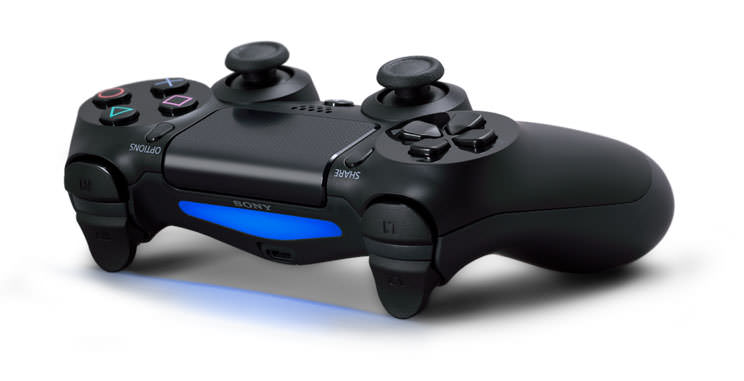
Use a PS4 Controller Wired to Your Mac with USB
The PS4 DualShock controller uses a standard micro-USB connection, and you can use a micro-USB to Type A standard USB cable to connect the controller directly to your Mac. This is the easiest and simplest option, as OS X natively recognises the PS4 controller when connected via USB, and it requires no configuration.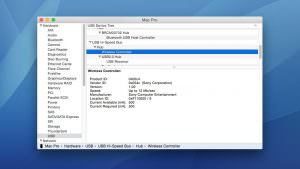
Use a PS4 Controller Wirelessly Connected to Your Mac via Bluetooth
The PS4 DualShock controller uses the standard Bluetooth v2.1 + EDR specification, making it compatible with Macs dating back as far as 2008. This allows you to connect it to your Mac wirelessly, so that you have freedom of movement while gaming that’s not limited by the length of your USB cord. Unlike a wired USB connection, however, a Bluetooth PS4 controller connection requires a quick bit of setup, in the form of a Bluetooth pairing procedure. To pair your PS4 controller to your Mac, first head to System Preferences > Bluetooth and make sure that your Mac’s Bluetooth radio is enabled. Then put the PS4 controller into discovery mode by holding both the PlayStation and Share buttons together until the controller’s light bar begins to blink. You can let go of the PlayStation and Share buttons at this time.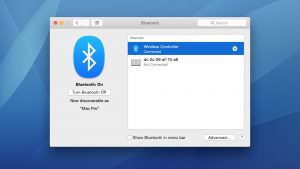
How to Play Games in OS X with Your PS4 Controller
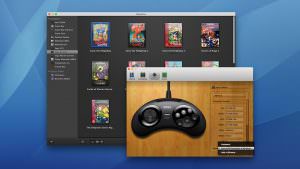
You can now start using your PS4 controller in supported games and applications. As a quick example, let’s look at the great console emulator, OpenEmu, which we told you about when it launched last year. We’ve recently been reading Blake Harris’ Console Wars — a great historical look at the war between Sega and Nintendo for control of our living rooms — and it put us in the mood to play some Sonic the Hedgehog. So we fired up OpenEmu, found our Sega Genesis games, and got ready to play someSonic. But before we start the game, we need to tell the app to use our newly connected PS4 controller. The steps involved in this process vary by the game or app, but in the case of OpenEmu, you’ll want to head toOpenEmu > Preferences > Controls. Select your emulated console from the list at the top, and then find the Input menu at the bottom.